Pages

Showing posts with label Ubuntu. Show all posts

Friday, December 16, 2011

Customize Your Ubuntu 11.10

I love customizing Ubuntu, and after upgraded my OS to Oneiric Ocelot, I realized that I've customized so many things. Here is the screenshot of my desktop.

Customized Ubuntu 11.10 with Gnome Shell

List of some useful Gnome Shell extensions that I've tried:
List of some Gnome Shell theme:
The other things to do?


Or find it here : http://www.webupd8.org/2011/10/things-to-tweak-after-installing-ubuntu.html

Note: I'll update this page later (if I've tried and installed the other extension.)
Happy Customizing :)

Monday, May 9, 2011

Easily create .iso file with Brasero

If you want to make an .iso file in your Ubuntu, no need to worry, you can use Brasero Disc Burner. Last time, I tried to make an .iso file with this application. It is very easy. First, open Brasero (default location: Apllication > Sound&Video > Brasero Disc Burner). 

Brasero user interface 

Wednesday, May 4, 2011

Manually install JDK on Ubuntu

Last time, I tried to install Net Beans on my Ubuntu, and of course I need JDK (Java Development Kit) to install it because the installer ask me too. Ok, I think I should install JDK manually on my Ubuntu because the  Net Beans installer I have is not the bundled version. Have you ever face the same problem like me? Then maybe you must hear my experience here.  Ok, I'll show you how to install JDK manually step by step.


Note: This guide only for Self Extracting Installer (.bin)

Wednesday, March 30, 2011

Fix Ubuntu plymouth

If your OS is Ubuntu and you have Nvidia or ATi graphic card, usually you'll have a problem with Ubuntu plymouth. Ubuntu nice plymouth turn into an ugly plymouth after you installed your graphic card driver. Here is step by step to fix it.

Resource:

Thursday, March 3, 2011

Get Ubuntu Font for Ubuntu 10.04

Ubuntu 10.04 didn't come with pre-installed Ubuntu font, and you want it, how to install it? I've search in Google and I foind it. Thanks to webupd8 for make a ppa to download and to receive it's updates.

Easy, just copy and paste following lines in your terminal:
sudo add-apt-repository ppa:webupd8team/ubuntu-font-family
sudo apt-get update
sudo apt-get install ttf-ubuntu-font-family

It will add webupd8 repository for Ubuntu font family and install directly from there. And that's all guys. :D

Enable Two-Finger-Scrolling on Ubuntu 10.04

Last time I share an article about how to enable two finger scrolling on Ubuntu 10.10 . And today I tried to enable two finger scrolling on Ubuntu 10.04. It's a little different from Ubuntu 10.10. If you followed how to enable two finger scrolling on Ubuntu 10.10 in previous article, you'll found problem at number 6 (no directory xorg.conf.d). Nah, here is another trick to enable it on Ubuntu 10.04 :)

One thing you must know, this guide only works with those who have Synaptics Touchpad on their laptop. It's still the same, download Pointing Devices from Ubuntu Software Center and disable vertical and horizontal scrolling from there. And now open your text editor (gedit, kate, etc.) and copy paste this code:

synclient HorizTwoFingerScroll=1
synclient VertTwoFingerScroll=1
synclient EmulateTwoFingerMinZ=40
synclient EmulateTwoFingerMinW=8

And save it for example in your home directory. For example I save it as 2fsr in my home directory.

Next, open terminal and navigate to your home directory and give an access to your recently created file (in my case, it is 2fsr file). In my case, I type this in terminal:
sudo chmod +x 2fsr

Next, try to execute the file with this code:
./2fsr

And now try your touchpad, it should work now :) And now let's put it in startup application. Navigate to System>Preferences>Startup Applications and add a new item there and browse your recently created file (in my case, it is 2fsr) and add it. Done! Now you can use two finger scrolling every time you boot into Ubuntu 10.04. Hope this helps :)

Sunday, February 27, 2011

Try Ubuntu in Windows easily!

Do you want to try Linux Ubuntu in your computer? But you don't know how to install it. Affraid making mistakes? Now, you can install it inside your Windows easily. How? You can use WUBI. WUBI is an executable program which will help you to set up Linux Ubuntu inside your computer.

Saturday, February 19, 2011

Control your Ubuntu using Ubuntu Control Center

[Tested on Ubuntu 10.04 and 10.10] Do you want something easier to manage Ubuntu? Yup, you can add a Control Center where it'll help you to do some task like Software Management, Hardware, Network and Internet, System, Local Disk and Account preferences. So how to install it?


Add XAMPP Control Panel in Ubuntu

[Tested in Ubuntu 10.10] Last time, I've installed XAMPP for linux in Ubuntu and I found that it's not too different from XAMPP for Windows. Yup, I think XAMPP for Windows is more easy to use because you can find XAMPP Control Panel there. With XAMPP Control Panel, you can start Apache, MySQL etc more easy, but how about XAMPP for Linux? Use terminal to start it? Yes, but there is another way! You can use a control panel too after you installed XAMPP for Linux. Here is the instruction, we will use phyton script :)

Enable FlashPlayer for Firefox in Ubuntu

[Tested in Ubuntu 10.10 installed with Firefox 3] Yesterday I installed Ubuntu 10.10 (again) in my laptop and the first problem I found: How to enable FlashPlayer 10 in my Firefox browser? I've followed instruction to install it from add-on manager from Firefox, but sometimes unsuccess. Yeah, you can use another browser for example Google Chrome which come with FlashPlugin. But if you still want to use Firefox browser; nah, this is the easiest way to do it. Follow my instruction :)

Saturday, January 15, 2011

Manage your passwords with KeePass or KeePassX

[KeePass was tested in Windows Vista and KeePassX was tested in Ubuntu 10.10] Do you have a problem with remembering your password? For example, you have a lot of username and password (Facebook, Twitter, MySpace, etc) but you're having trouble remembering all of them. Nah, I think this application can help you to manage your passwords. You don't need to remember all of your account information now. You just need to remember 1 password, and this application will help you to remember all of your account information. KeePass and KeePassX can help you now!

Wednesday, January 12, 2011

Control CPU frequency using CPU Frequency Applet

Do you know that you can manage your CPU in Ubuntu, like how fast they run and how much they consume your laptop battery? If you don't know, now you must watch this post and enable it. Why? Of course to control your CPU so they won't consume a lot of energy, so you can have more time if you're using your laptop if it's unplugged.


Tuesday, January 4, 2011

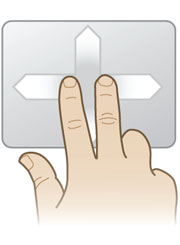
Enable Two-Finger Scrolling on Ubuntu 10.10

[Tested on Ubuntu 10.10, 11.04, 11.10 and Linux Mint 10] Have Ubuntu running on your laptop, and you want to enable Two-Finger scrolling on your touch-pad, is it possible? If you go under System>Preferences>Mouse and go to the touch-pad tab, you'll see radio button to enable Two-Finger scrolling, but it's color is gray and it is not click-able, right? So how to enable it? I really want something like MacBook touch-pad! Ok guys, be patient. I've search it on Google and I found a way to enable it. O yeah, once more: this guide only enable Two-Finger scrolling (horizontal and vertical scrolling) and this only works with Synaptics touch-pad. Ok, let's begin now!

(image from: http://www.synaptics.com/sites/default/files/2F-Scroll.jpg)

Saturday, January 1, 2011

Conky, a free light-weight system monitor for X!


In Windows, there is an application called Rainmeter (http://rainmeter.net/) which can display system monitor on the desktop. I want something like it on my Ubuntu desktop. Is there a way to bring it to my desktop? YES! Conky can do it!

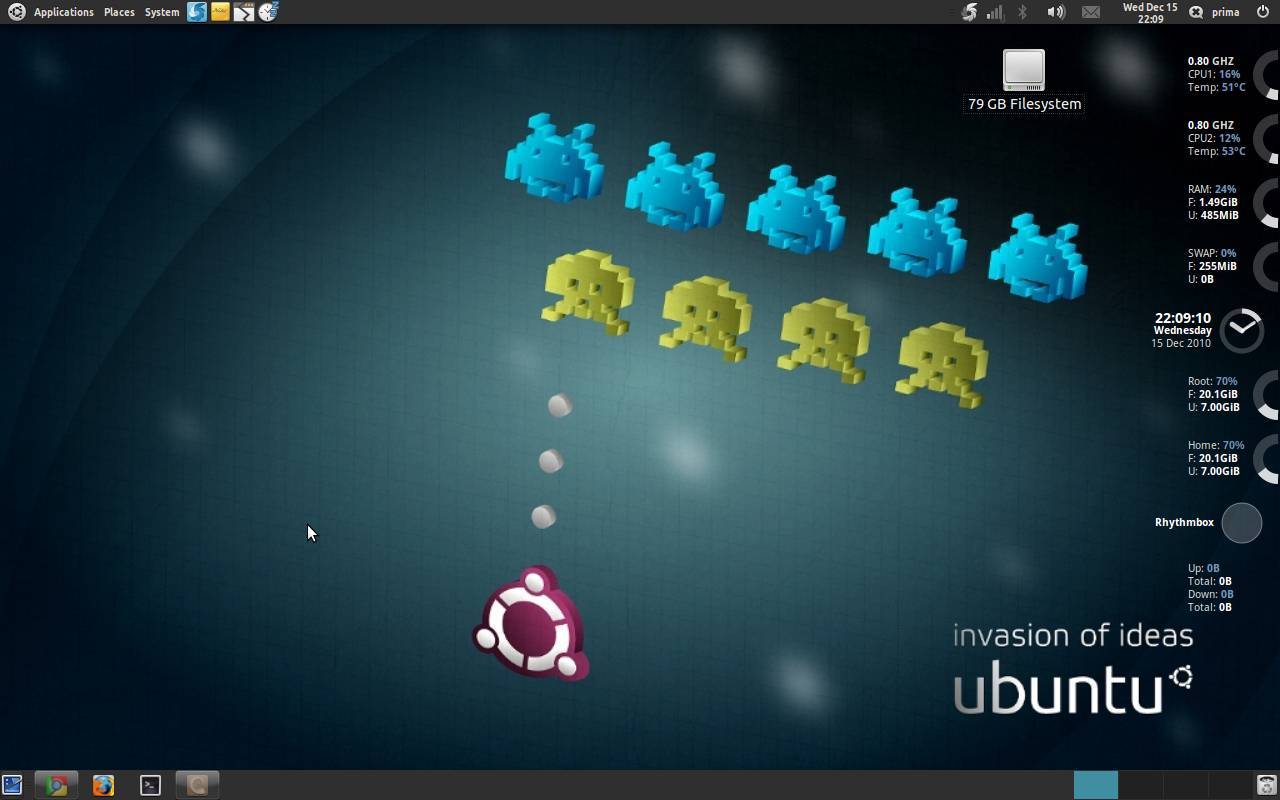
So what is conky? Conky is a free light system monitor for X which can display any info about on your deskop. Here is an example of Conky on my Ubuntu desktop.

There are two ways to configure Conky. First, you can use ConkyWizard with GUI configuration or you can use Conky-colors to make your Conky more beautiful. I use Conky-color with cairo theme. So whick one is better? Haha, it's up to you. If you ask me why I choose Conky-colors, maybe because I'm like it's cairo theme.

So, are you ready to configure Conky? Let's go!


(1)If you want to configure Conky with ConkyWizard, check this link:
(2)But if you want Conky-colors: check this link:
http://www.webupd8.org/2010/07/conky-colors-makes-your-conky-beautiful.html

And if you want Conky-colors with cairo theme, check this link:
http://www.webupd8.org/2010/08/conky-colors-gets-beautiful-new-cairo.html

Preview of my desktop using Conky

Conky make your desktop beautiful, isn't it?
And if you want the same wallpaper that i use, check this link:
http://petrsimcik.deviantart.com/#/d33br69

Plus, I use DockBarX for my bottom panel. If you want DockBarX, check this link too:
http://www.webupd8.org/2010/12/dockbarx-041-released-with-redesigned.html

So, do you like it? Hope this helps and happy customizing. :)

Configure NotifyOSD and panel gap in Ubuntu 10.04 and Ubuntu 10.10

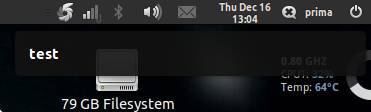
Hi everybody, do you have a problem with notification bubble (Notify OSD) in Ubuntu 10? There is a gap between notification bubble and top panel, right? Oh, it's very annoying for me! So how to fix it? Here, I found a way to fix it after searching on Google.

NotifyOSD (before)

I search it on Google, finally I found how to fix it. All we need is Notify OSD Configuration GUI. Here is the screenshot.

NotifyOSD Configuration Interface

I've test it on Ubuntu 10.10. With this graphical user interface, we can set the vertical gap and horizontal gap of notification bubble. Here is the screenshot after I configure it on my laptop.

NotifyOSD (after)

So, how to get Notify OSD GUI? Just go to below link from WebUpd8.
http://www.webupd8.org/2010/10/tweak-notifyosd-notifications-in-ubuntu.html

Hope this helps! :D Happy customizing!

Install Microsoft Office 2007 on Ubuntu (PlayOnLinux)

Yeah, this time i'll tell you about how to install Microsoft Office 2007 on Ubuntu. It's easy! PlayOnLinux can help you to do it easily! How...?

PlayOnLinux interface

The easiest way is using PlayOnLinux (link in the end of this post). Just download and install it. After install it, run PlayOnLinux (Application>Games>PlayOnLinux) and click button install. Next step is, navigate to office and choose Microsoft Office 2007. Before installing, it's better for you to have an internet connection when installing Microsoft Office 2007 using PlayOnLinux, so it can get everything needed to install Microsoft Office 2007.

Friday, December 31, 2010

VP Expert and Ubuntu!

Some weeks ago, I installed Ubuntu 10.10 Maverick Meerkat in my laptop. So, now I have 2 OS inside my laptop, Windows Vista and Linux Ubuntu. After some weeks playing with Ubuntu, I'm trying to learn it more and more. I've installed Wine so i can run some executable program from windows. But, I was stuck with a program called VP Expert. I need it for my Artificial Intelligence project, but I can't run it with Wine. And finally, I found DosBox! With DosBox, I can run VP Expert smoothly! :)

So, how to operate it? It is really simple. All you need to do is:
1. Create a folder and put DOS/Windows Executable file inside this new folder (for example, i created c folder inside ~/dos and then i put VP Expert inside ~/dos/c)

2. Next, open your DosBox and you'll see Z:\>. All you need to do is mount the newly created folder. Look at the example below

DOSBox interface

I mounted my folder as a virtual drive c. If you want to mount it as another virtual drive, just replace mount c with mount d or mount e.

3. And then, the virtual drive has been created. You can type C: and it'll become C:\>. And then if you type dir, you'll see similar output like what you do in windows command prompt.

4. Locate your executable DOS from there, and execute it!

5. Finally, it works! :D

VP Expert run on DOSBox

Wow! Hope this guide can help you if you face a problem like my problem. :D